Author Archives: jay

What type of SSL certificates do you offer?

We offer Regular SSLs for one domain/subdomain and Wildcard SSLs that cover all subdomains under one domain, both from Sectigo.

They can be ordered for a period between one and two years.

For the time being, we do not offer multi-domain SSLs that can be installed on several domains in the same time, and Extended Validation (EV) SSLs, which show the company name in a green bar in the browser URL bar.

You can request the installation of a “Let’s encrypt” certificate too.

Here is what you need to consider when choosing an SSL certificate:

Let’s encrypt” certificates – really quick and easy to install. Perfect for non-commercial sites, blogs or photo galleries. Valid for only 90 days and must be renewed before they expire. On our platform, “Let’s encrypt” certificates are renewed automatically, so you won’t have to worry about that.

Regular SSL certificates – include a warranty against misuse or mis-issuance. Suitable for e-stores or enterprise sites, which need warranty-equipped SSL certificate issued by an established CA. Valid for at least one year and can be purchased for more years in advance.

Third-party
 certificates – if you have an SSL certificate purchased from somewhere else, you can upload it to a selected host with a click of the mouse.

Do I need a dedicated IP address for my SSL certificate?

You may benefit from using a dedicated IP address for your domain name and hence, for the SSL certificate on it as the IP will open your website and only one SSL will be listed for that IP.

If you do not want to buy a dedicated IP, however, you do not have to, as we offer specially configured shared IP addresses that are used for SSL certificates.

Of course, if you decide to add a dedicated IP address later, you can do so at any time from the Add or Upgrade service(s) link on the left side of your control panel.

Can I buy an SSL certificate from another vendor and install it here? How?

Yes, you can buy an SSL certificate from any vendor.

An SSL is issued based on the so-called Certificate Signing Request (CSR), which is a block of code generated on the basis of the contact details you enter for that SSL.

If you have already bought an SSL from another company, you can download/copy the CSR code, the Private Key, which was generated with it, then add them along with the SSL from My Domains -> SSL Certificates.

If you have any issues, you can also contact us by opening a ticket from the Help menu on the top-right of your hosting control panel or from the button below.

Can I renew multiple domains in bulk?

If you want to renew one or several domains without renewing your hosting plan, go to My Domains -> Registered Domains, where you will find a list of all domains registered in your account, tick the checkbox for the ones that you want to renew, then click on the Renew button that is located just above them.

A new page will appear, so you can renew only the selected domains.

How do I use mailing lists?

You can create mailing lists from the Email -> Mailing Lists menu of your Control Panel.

Just click on the ‘Create a new mailing list‘ button on the top right and fill in the following details of your first mailing list:

 Mailing List Address – here you have to specify the address of the mailing list. When you send an email message to the address of the mailing list, this message is sent to all the subscribers of the mailing list.

The first part of the mailing list address is the name of the maling list. For instance, if example-list@my-site-name.net is the mailing list address, then example-list will be the mailing list name. 

Next, you have to specify the email address of the administrator of the mailing list.

The administrator email address will receive notifications about subscriptions, questions from subscribers and potential subscribers and other administrative e-mails.

After that, you have to type and confirm the administrator’s password.

The mailing lists on our servers are operated via commands sent to an automated mailing list management program called Majordomo. Majordomo is fairly easy to use but there are certain rules that you must follow:

– commands are sent to majordomo@my-best-domain.com
– commands must be in the body of the message (not the subject)
– each line is considered a new command

Here is a list of all the commands that you can use and their short explanations:

subscribe – this command subscribes to the mailing list the e-mail address that you are sending from and it must be followed by the name of the mailing list that you wish to subscribe to. If you wish to subscribe a different e-mail address, the command looks like this:

subscribe example-list example-mail@my-best-domain.com

unsubscribe – this command unsubscribes from the mailing list the e-mail address that you are sending from and it must be followed by the name of the mailing list that you wish to unsubscribe from. If you wish to unsubscribe a different e-mail address, the command looks like this:

unsubscribe example-list example-mail@my-best-domain.com

which – this command shows the mailing lists on this system that the e-mail address you are sending from is subscribed to. You can check for another e-mail address as well and then the command will look like this:

which example-mail@my-best-domain.com

That command can be further generalized in order to see the mailing lists that each e-mail address under the domain name example.com is subscribed to and then the command will simply be:

which my-best-domain.com

who – this command shows all the e-mail addresses that are subscribed to the mailing list and it must be followed by the name of the mailing list.

who example-list

info – this command shows detailed information about the mailing list itself and it must be followed by the name of the mailing list.

info example-list

index – this command shows if there are any files associated with the mailing list and it must be followed by the name of the mailing list.

index example-list

get – this command sends a request to retrieve a particular file that is associated with the mailing list and it must be followed by the name of the mailing list and the name of the file.

get example-list example.file

intro – this command retrieves the introductory message sent to new subscribers and it must be followed by the name of the mailing list. Non-subscribers may not be able to retrieve this.

intro example-list

lists – this command shows a list of all publicly available mailing lists on this system.

help – this command retrieves a help message that provides detailed information about working with Majordomo and the mailing list.

end – this command stops further processing of commands. That is useful if you use an automated signature for your e-mails. Otherwise each new line is considered a new command and you will receive false error messages.

And here is a list of the Majordomo commands that require the administrator password:

approve [password] subscribe/unsubscribe example-list example-mail@my-best-domain.com

This command approves the subscription or unsubscription of a particular e-mail address when the respective action requires the approval of the list owner. Have in mind that this is a standard subscribe/unsubscribe command preceded by “approve” + the adminstrator password.

approve [password] who example-list

This command shows the addresses on the anonymous list. Even the owner of the list cannot see who is on the anonymous list without the password.

passwd example-list [password] [new password]

This command allows you to change the administrator password by sending an e-mail. You can also change the password for the mailing list using the E-Mail Options > Mailing Lists menu of the Web Hosting Control Panel. Simply click on the Edit button next to the mailing list that you wish to change the password for.

newinfo example-list [password]

This command replaces the information file that people see when they subscribe or request with the info command. Everything after the password will be considered the new message unless you use the EOF word on a separate line.

config example-list [password]

This command sends a request to retrieve the self-documenting configuration file for the list.

newconfig example-list [password]

This command replaces the configuration file that you can retrieve with the config command and changes the configuration for the list as soon as it is validated. If you have other commands after that, they will be subject to the new configuration. Again, everything after the password will be considered the new configuration unless you use the EOF word on a separate line. If the new configuration file contains an error (an incorrect value), the entire file will not be accepted. There will be an error message dispaying the problem line(s). You are advised to keep a copy of the configuration files since only the error messages are returned but not the entire file.

How do I reduce the CPU usage of my hosting account?

The CPU usage involves the Central Processing Unit(s) of the web server where your account is hosted on.

Each hosting account has a CPU usage limit, which, when reached, may result in the account being suspended.

You can monitor the CPU usage stats for your hosting account at any given moment from the Statistics -> CPU Stats section of your Control Panel.

You can compare the current CPU usage with the allowed limit for your account, which you can see in the Account Usage table (located on the left side of your Control Panel).

To reduce the CPU usage of your account, there are several general rules you should follow:

  • Upgrade all third-party web applications to the latest stable release available (Joomla, WordPress and any other content management or blog systems, forums, galleries or any other scripts that you have installed)
  • If any of the web applications that you use have addons or plugins, make sure they are upgraded to the latest availble versions as well
  • Remove any unused web applications and/or plugins/addons that you have installed
  • Activate caching for any web applications that you use that have this option
  • If you have developed your script(s) yourself, try reducing the number of MySQL/PostgreSQL queries and optimize your scripts to use less processing time.

If you need to deal with a high CPU usage problem and reduce the CPU usage, you must first identify the reasons for the high CPU usage.

Unfortunately, this is often quite difficult, especially if you are using third-party web applications such as forums, content management or blog systems, etc. that you have not developed yourself and have little or no knowledge at all about their inner working.

Here are a few recommendations you could consider to get an idea where to start from:

  1. Identify the website that is most likely to be responsible for the high CPU usage.
    If you host more than one website (domain/subdomain) in your account, start by identifying which one is most visited and which one generates most traffic – this is probably the one that’s responsible for the high CPU usage. Go to the Statistics > Traffic Stats section and find out which of your hosts (domains or subdomains) has generated the most traffic for the past day and for the current month.
  2. Identify the file that is most likely responsible for the high CPU usage (if any).
    Once you have established which website has generated the most traffic by visiting the Statistics menu, go to the Statistics > Traffic Stats section of your Control Panel and view the traffic stats for this domain/subdomain for the current month. Look for the file(s) that have generated most traffic – you can find them in the Top 10 of XX Total URLs By KBytes table. Look for any PHP/CGI files in this list that have generated unusually large amounts of traffic. This file(s) is most likely the reason for the high CPU usage and you should consider optimizing it.
  3. Identify the visitor/bot that is most likely responsible for the high CPU usage (if any).
    Like in step 2, look at the monthly traffic stats for your domain/subdomain and look for the visitor/host that has generated most traffic this month. You will find the list under Top 10 of XX Total Sites By KBytes – look for any hosts that have generated unusually large amounts of traffic (compared to the rest) – it would either be an IP address or a hostname of the kind botname.some-domain.com. You may want to block the access of this host(s) or at least restrict it to reduce the CPU usage of your account.

If you are still unable to reduce the CPU usage of your account, you should either look for the help of a professional developer or simply consider a either a dedicated server or at least a VPS or a semi-dedicated server.

How do I get a dedicated IP for my domain/subdomain?

If your hosting package does not include a dedicated IP address, then you can easily obtain one as an upgrade.

In order to do that, go to the Add or Upgrade service(s) section located on the left side of your screen.

Once in there, find the line that says IP Addresses, select the amount of IPs that you wish to purchase, choose a payment method that is most convenient for you and click Continue to place the payment.

The price for every additional service, including the dedicated IP addresses, is calculated on a monthly basis for the remaining months until the expiration of your hosting package. For instance, if your account expires in 3 months’ time, then the price for the additional service will be calculated for three months only. Once your account expires, you will be able to renew the add-ons, along with the hosting plan itself.

Once the payment has been placed and approved by our Sales Department, you will be able to see the ordered IPs in the Account Usage table marked as Available. Also note that a new section Dedicated IPs will appear under the My Domains menu in your Web Hosting Control Panel once you order an IP address.

Ordering an IP address does not automatically assign it to your hosting account. Whenever you wish to put an IP address into use, just go to the My Domains > Dedicated IPs menu and click on Request IP Address. Once you do that, an IP address will be assigned to your account and you will be able to use it as you wish.
Every IP that you assign to your account will be shown in the list right below the Request IP Address button in the Dedicated IPs section. Also, when requested, the IP addresses will be marked as In Use in the Account Usage table on the left.

NOTE: Clicking on the Request IP Address button will only assign one IP address. If you have ordered multiple IP addresses, then you will have to request them one by one.

After the IP address has been purchased and requested, you can assign it to a specific domain/sub-domain name that you are hosting under your account. This is done through the Subdomain Manager (My Domains > Hosted Domains). There you’ll see a button for creating new subdomains and a list of all existing ones.

When creating a new subdomain, you can specify an IP address for it, selecting it from the IP Address drop-down menu. If you wish to assign an IP to an already existing name, simply use the Edit button next to the subdomain in question. Again, to assign an IP to this specific subdomain, just select it from the IP Address drop-down menu and click Add a Host to confirm the change.

Note that every time you change an IP address, the system needs up to 10 minutes to update the new information. There is also an additional propagation time, which could be up to 24 hours.

IMPORTANT: The “www” subdomain is a default subdomain of your domain. Changing the IP address for the “www” subdomain also changes it for the domain name itself. In other words, if you wish to change the IP of my-best-domain.com, then simply change the IP of www.my-best-domain.com.
How to clear the cache of my web browser?

Clearing your browser’s cache forces it to load the most recent version of the websites you visit, which can help resolve display or loading issues.

Below are instructions for clearing the cache in common web browsers:

Google Chrome

  1. Open Chrome.
  2. Click the three-dot menu in the top-right corner.
  3. Go to More tools → Clear browsing data.
  4. Select Cached images and files.
  5. Click Clear data.

Mozilla Firefox

  1. Open Firefox.
  2. Click History → Clear Recent History.
  3. Select Cache from the list.
  4. Click Clear Now.

Internet Explorer 8 / 10

  1. Open Internet Explorer.
  2. Click Settings → Delete Browsing History.
  3. Select Temporary Internet files (cache).
  4. Click Delete, then click OK to close the Internet Options window.

Vivaldi

  1. Open Vivaldi.
  2. Click Tools → Clear Private Data.
  3. Click Clear browsing data.

Opera

  1. Open Opera.
  2. Click the Opera menu in the top-left corner.
  3. Select Clear browsing data.
  4. Check Cached images and files.
  5. Click Clear data.

Safari

  1. Open Safari.
  2. Click Safari → Clear History.
  3. Choose the time range you want to clear.
  4. Click Clear History.

How to change the Control Panel password?

Unlike your username (login name), the password for your Control Panel can be changed at any time.

To update your password, move your mouse over your name in the top-right corner of the Control Panel and select Change Password from the menu.

You will be asked to complete the following three fields:

  • Current Password — enter your existing password
  • New Password — enter your new password
  • Re-type New Password — confirm your new password

After filling in all fields correctly, click the Change button at the bottom of the form to complete the process. Your new password will take effect immediately.

If you do not remember your current password, you can use the Forgotten Password link on the login page to reset it. Alternatively, you may contact our Support team by opening a support ticket.

To open a ticket, go to the Help menu (Help Center → My Tickets → Open a New Ticket) in the top-right corner of your Control Panel, or use the button below.

What are the correct name servers (DNS) for my domain?

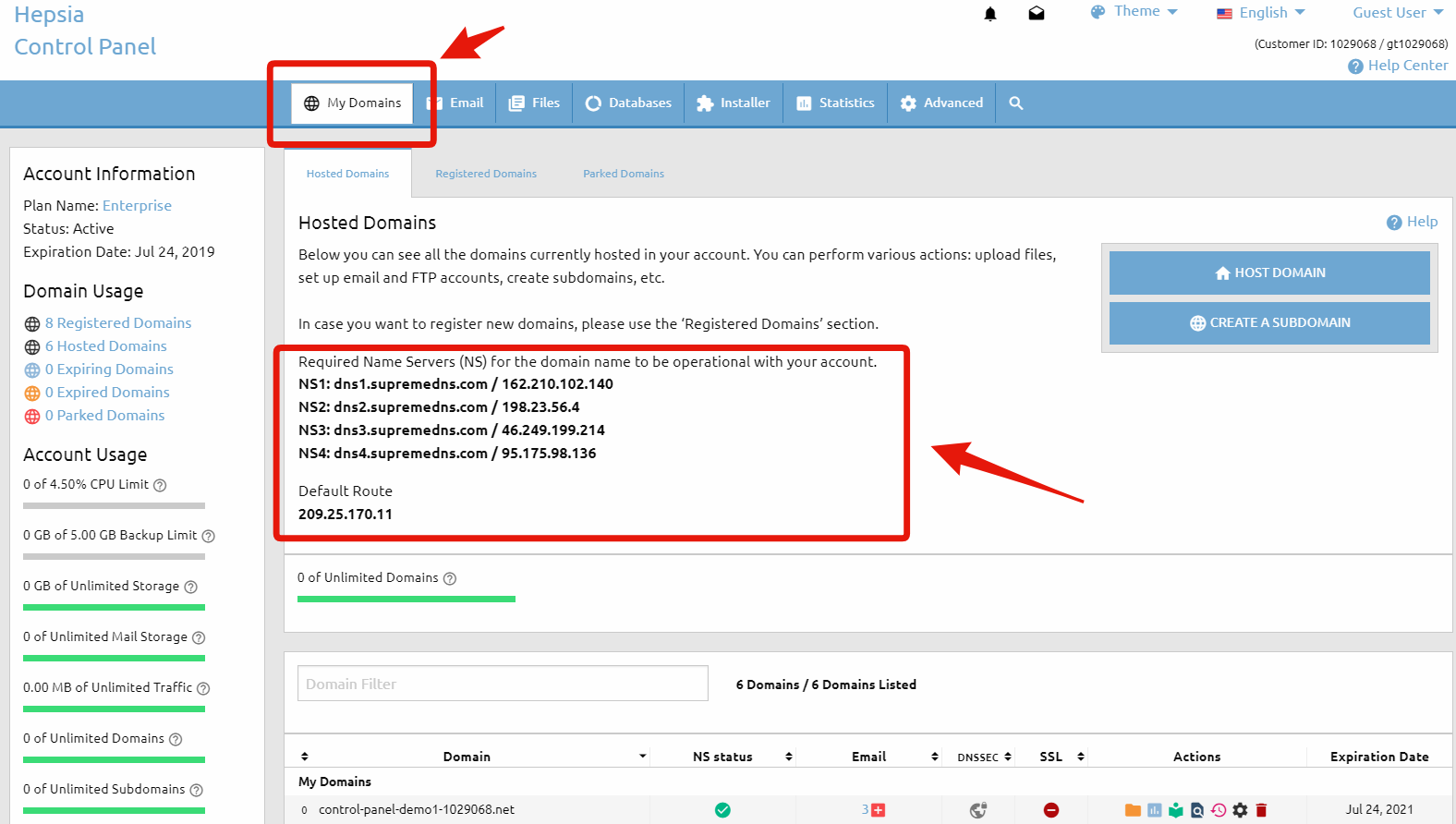
If you wish to host a certain domain name in your account with us, our name servers must be assigned for it so that it works properly. You can easily find the correct name servers that you need in the Hosted Domains section (My Domains > Hosted Domains) of the Web Hosting Control Panel. They are displayed on the left side, above the table that lists all the domain names that have been added to the Hosted Domains section.


correct name servers

If the domain name that you want to host with us is also registered with us or has been successfully transfered to us, you can change the name servers for the domain name via the Domain Manager section (My Domains > Registered Domains) of the Web Hosting Control Panel. For detailed instructions how to do that, please see the article: How to change the Name Servers of a domain name?.

If your domain is registered with another company, you must change the name servers at their end. There should be a Control Panel to manage the domain name and the name servers listed in the Hosted Domains menu must be applied to your domain. If you cannot find such a menu or you experience any problems changing the name servers, you should contact the customer support staff of the company that has registered the domain name for you.

IMPORTANT: Apart from changing the current name servers with ours, in order to host a domain name in your account it must be added to your Hosted Domains. For detailed information about hosting a domain, please refer to the article: How do I host a domain name?.