Category Archives: Knowledge Base

Understanding Recurring Payments at SharkASP

At SharkASP, we focus on stability, ease of use, and keeping your online services running without interruption. To help you avoid missed renewals and unexpected downtime, we offer an automated recurring billing system for hosting plans, domain names, and service upgrades. This system ensures timely renewals while giving you complete visibility and control over your subscriptions.

Below is a detailed explanation of how recurring payments function, when renewals are processed, and how you can manage or update your billing preferences.

How SharkASP Recurring Billing Works

When you purchase SharkASP services—such as web hosting, domain registration, or plan upgrades—using a credit/debit card or PayPal, a recurring billing subscription is automatically set up for the next billing term.

This subscription enables automatic renewal of the selected service, ensuring your account remains active without requiring manual payment each cycle.

  • Card payments: Subscription details are included in your payment confirmation email.
  • PayPal payments: PayPal sends a separate email confirming the recurring authorization.

Early Renewal Processing for Maximum Uptime

To minimize the risk of service disruption, recurring payments are processed seven (7) days before the actual renewal date. This advance billing window helps prevent issues such as expired cards or insufficient PayPal balances.

If a renewal attempt is unsuccessful, you’ll receive an immediate notification and have seven additional days to resolve the issue before any service interruption occurs.

Viewing or Canceling Your Subscription

You can review or cancel any active recurring subscription at any time through the SharkASP Control Panel:

  1. Hover over your account name in the top-right corner
  2. Select Recurring from the menu

If your subscription was created via PayPal, you may also manage or cancel it directly from your PayPal account dashboard.

Updating Your Payment Method

If you’d like to keep your recurring subscription active but change the payment source, follow these steps:

  1. Go to the Recurring section in your Control Panel
  2. Click Change next to the subscription
  3. Choose your new payment option:
    • PayPal
    • FirstData (credit/debit cards)
    • WorldPay (American Express)

You’ll be redirected to a secure authorization page to complete a $0.00 verification transaction, which confirms approval for future automatic renewals.

Final Thoughts

The SharkASP recurring payment system is designed to simplify account management while protecting your websites and domains from accidental expiration. With automated renewals, early billing, and flexible payment controls, you can focus on building and growing your online presence with confidence.

If you ever need assistance, our support team is ready to help—so you can continue enjoying the performance, reliability, and security that SharkASP hosting provides.
How to Register Custom Name Servers for a Domain at SharkASP

Name servers play a critical role in directing your domain to the correct hosting server. If you want to use custom or private name servers for a domain registered with SharkASP, you can easily configure them through the SharkASP Control Panel.

There are two ways to register a new Name Server (NS) record for a domain registered with SharkASP:

Option 1: Using the Edit Name Servers/WHOIS Column

  1. Log in to your SharkASP Control Panel and navigate to My Domains > Registered Domains.
  2. Locate the domain you want to update and find the Edit Name Servers/WHOIS column.
  3. Click the Edit Name Servers icon.
  4. The Manage DNS pop-up window will appear. Switch to the second tab labeled Manage Domain-Based NS.
  5. Enter the name server (NS) and corresponding IP address in the required fields.
  6. Click the Register button to save the new name server record.

Option 2: Using the Domain Information Window

  1. Sign in to your SharkASP Control Panel and go to My Domains > Registered Domains.
  2. In the Domain column, click the domain name you wish to modify.
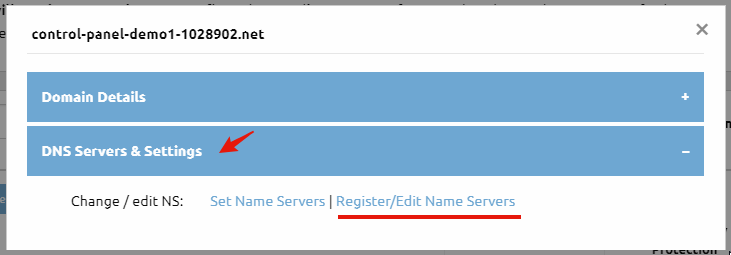
  3. The Domain Information pop-up window will open. Go to the DNS Servers & Settings tab and click Register/Edit Name Servers.
  4. In the Manage Domain-Based NS tab of the Manage DNS window, enter the name server and IP address details.
  5. Click Register to add the new name server record.

Important Notes

  • Name server changes may take up to 24 hours to fully propagate across the internet.
  • You can register multiple name server records for redundancy and improved reliability.
  • Using SharkASP for both domain registration and web hosting simplifies DNS management and saves time.

How to Change the Name Servers of a Domain Name at SharkASP

To change the name servers of a domain name, you need to access the registrar where the domain is currently registered.

If your domain name is registered with SharkASP, you can easily update its name servers through the Domain Manager in your SharkASP Control Panel (My Domains > Registered Domains). There are three different ways to do this:

Option 1: Change Name Servers in Bulk

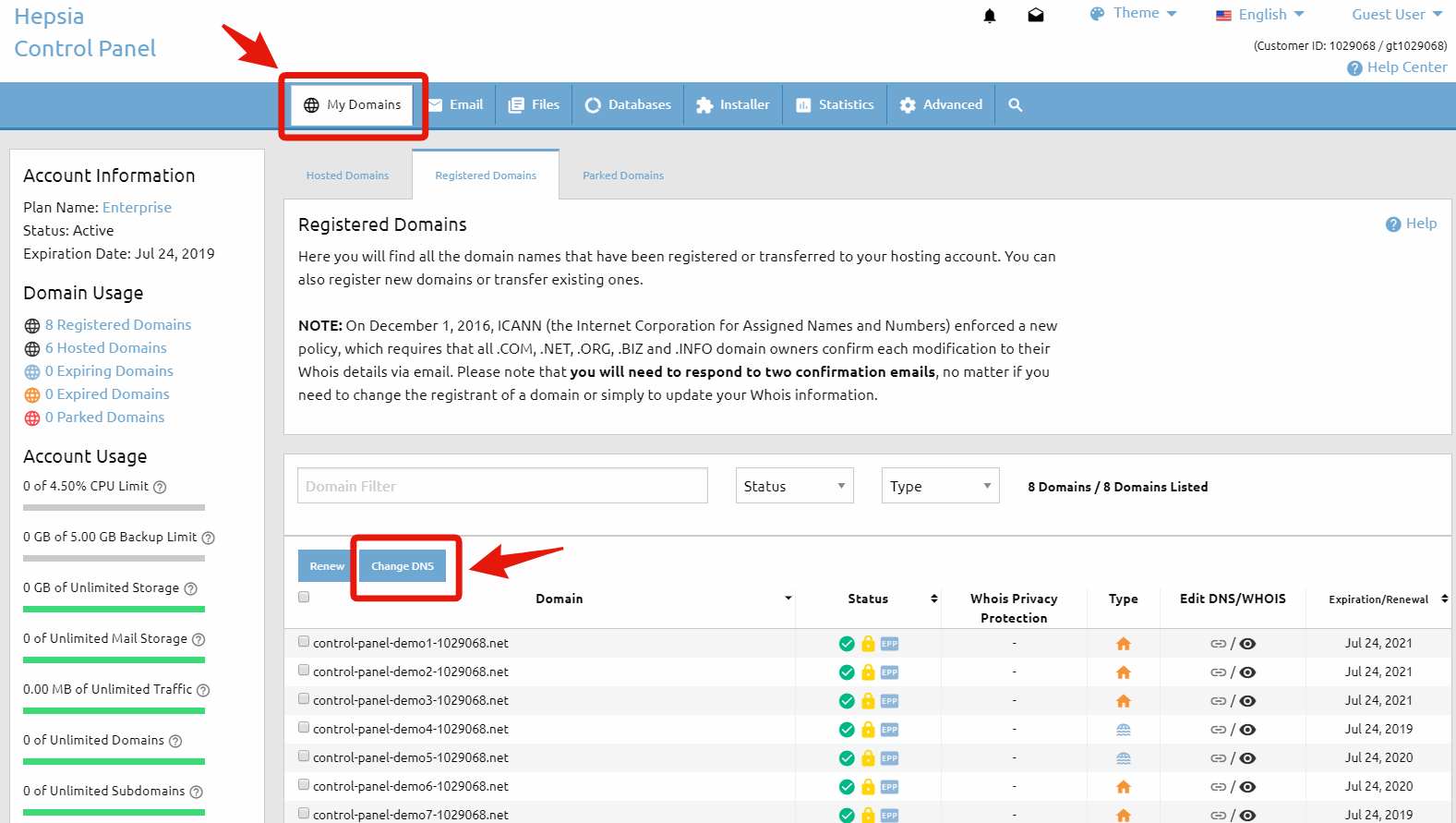
Each domain name in the list has a checkbox next to it. Select one or more domains by ticking the checkboxes, then click the Change DNS button.

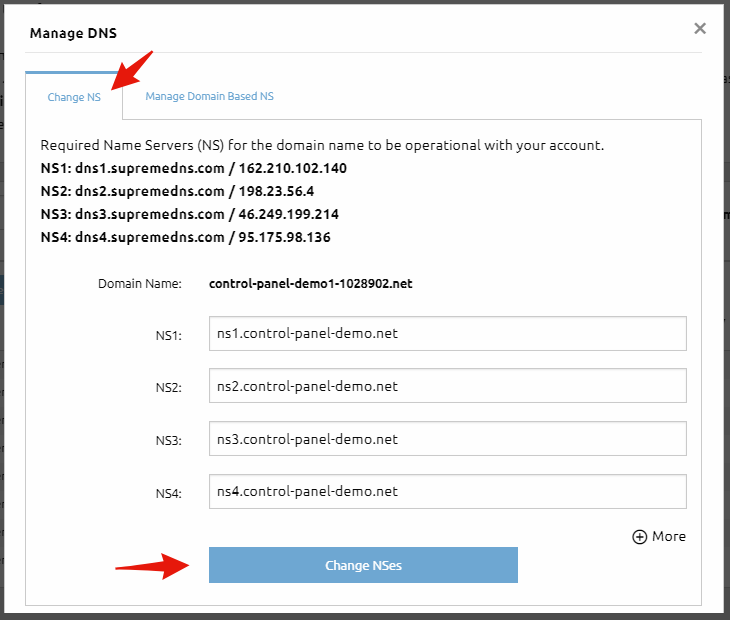
You will be redirected to a page where you can enter the new name server values. Once you’ve entered the details, click the Change NSes button to save your changes.

Important: This option allows you to update name servers for multiple domain names at the same time.

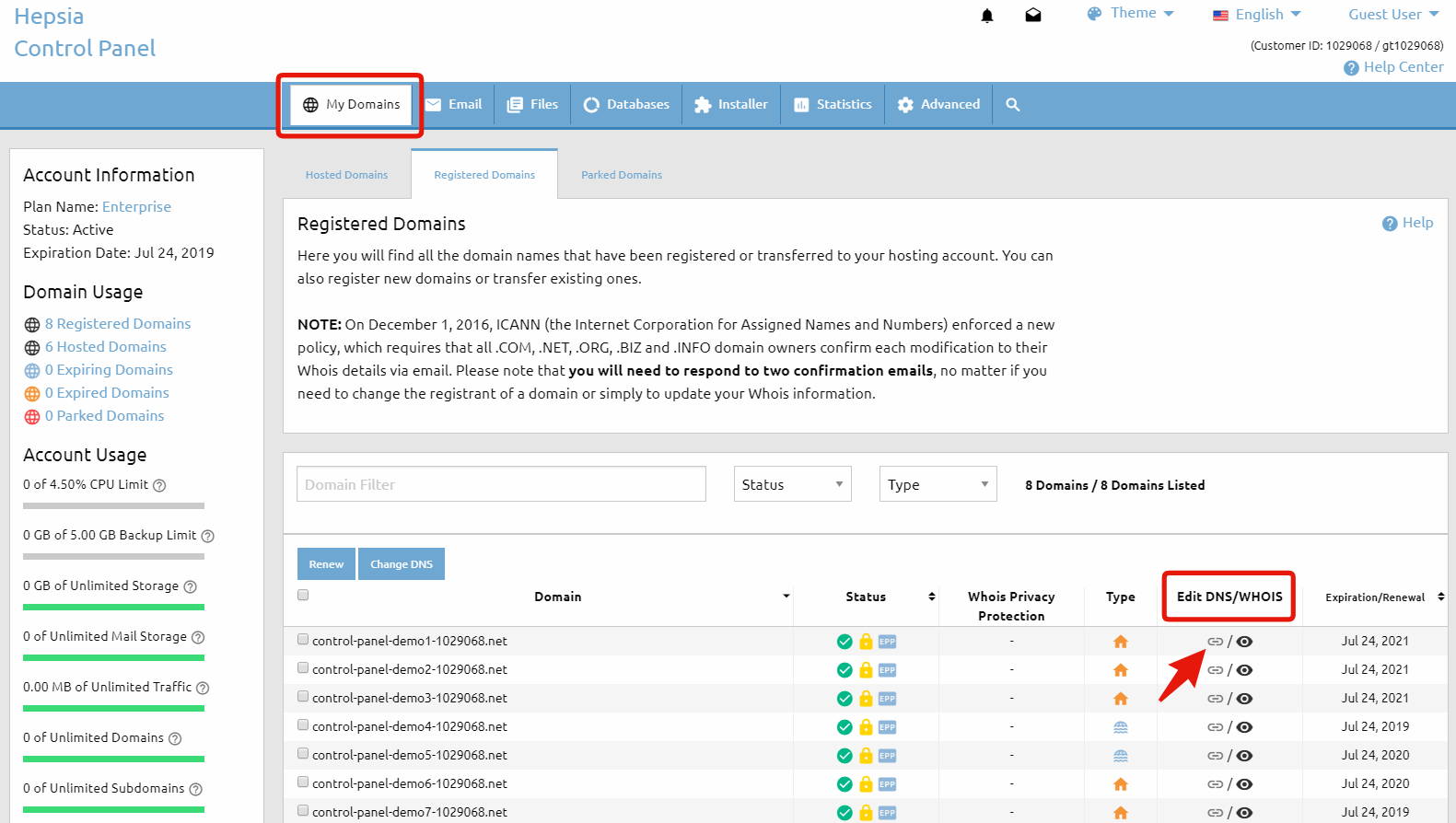
Option 2: Edit via the DNS/WHOIS Column

Next to each domain name, you’ll see several icons grouped into different columns. Locate the Edit DNS/WHOIS column and click the NS Status icon (the icon indicated by the arrow in the reference image).

A small pop-up window will appear with two options:

  • Edit the name server settings
  • Register your own private name servers

If you select Edit the name server settings, you’ll be redirected to the same page used in Option 1, where you can enter the new name servers.

After entering the new values, click Change NSes to apply the changes.

To learn more about the second option, please refer to the article: How to Register Custom Name Servers for a Domain Name.

Option 3: Edit from the Domain Information Window

In the Domain column, click the domain name you want to modify.

This will open the Domain Information pop-up window showing details for the selected domain. Navigate to the DNS Servers & Settings tab and click the Register/Edit Name Servers link.

In the Change NS tab of the Manage DNS window, enter your new name server information and click Change NSes to save the changes.

Important Note: Name server updates may take up to 24 hours to fully propagate across the internet.

Why Choose SharkASP for Domains and Hosting?

With SharkASP, you get more than just a domain name—you get a powerful, reliable hosting platform designed for ease of use and performance. With SharkASP, you can:

  • Register and manage all your domains from one control panel
  • Update DNS settings and name servers quickly and easily
  • Host your websites on secure, high-performance servers
  • Access 24/7 support from experienced hosting professionals

Whether you’re launching your first website or managing multiple domains, SharkASP provides the tools, flexibility, and support you need to manage your domains with confidence.

How to View WHOIS Information for Your Domain

In addition to web hosting services, SharkASP also provides domain registration. To access the WHOIS data sheet for a domain registered with us, follow the steps below:

  1. Log in to your control panel and navigate to My Domains → Registered Domains.
  2. In the “Domain” column, click on the domain name you want to review.
  3. This will open the “Domain Information” pop-up window, which displays detailed information about the selected domain.
  4. Within the “Domain Details” section, locate the “Edit WHOIS Details” option.
  5. Click the “View” link to review the domain’s current WHOIS information.

Regularly reviewing your domain’s WHOIS information ensures accuracy and helps maintain full control over your domain registration. To register a domain name, please visit https://sharkasp.com/domain